Showing posts with label SQL Authnticator. Show all posts

Friday, January 10, 2014

Oracle SOA/BPM - Create Application Role from SQL Authenticator in EM Console

This blog is third series of my previous blogs related to SQL Authenticator
SQL Authenticator -1
SQL Authenticator-2
I was facing some issues while creating application role in EM console from DB based Authentication provider.

select soa-infra -> security -> application roles


Click on add button


Choose user as Type and put  some principal name


You will see following error because it would not work for custom authenticators.You have to choose advance option

ERROR
=============
Failed to retrieve users.
Operations error: entity= op=search mesg=Protocol Error LDAP Error 2 : %HOST%:389


Select type as User or Group and enter name of user or group which is present in Database tables


Click OK and put some info in next screen for display and description fields


Click OK and you can seen new application role present in following screen. 


Now you can see these roles in human task activity in JDeveloper


Monday, February 18, 2013

Oracle SOA/ BPM - SQL Authenticator Integration with HWF/WorkList App

Please refer my previous blog to know how to configure SQL Authenticator
Configure SQL Authenticator

Please follow these steps

Changed default realm

(EM Console)Changed the value of key “WorkflowIdentityConfig.ConfigurationType” from default “jazn.com” to “myrealm” by executing the “setRealmName” operation

soa-infra ->Administration -> System Mbean Browser -> Application Defined Mbeans - > oracle.as.soainfra.config -> Server - > WorkflowIdentityConfig -> human-workflow -> WorkflowIdentityConfig.ConfigurationType -> select the configuration and rename by invoking the operation setRealmName


SQL Authenticator Configuration for BPM worklist and Human Task Flow


Download the attachment: workflow-120-SQLIdentityProvider.zip 
Copy dbprovider.jar from workflow-120-SQLIdentityProvider\lib to MW_HOME/user_projects/domains/{soa_domain}/lib

Follow the steps below:
1. Shutdown SOA and Admin Server
 2. Navigate to MW_HOME/user_projects/domains/{domain_name}/config/fmwconfig
 3. Backup jps-config.xml
 4. Edit jps-config.xml and make the following modifications
   A. Modify
   <serviceInstanceRef ref="idstore.ldap"/> to
   <serviceInstanceRef ref="idstore.custom"/>
     under <jpsContext name="default">
   B. Add
      <serviceInstance name="idstore.custom" provider="custom.provider"
 location="dumb">
                <description>Custom Identity Store Service Instance</description>
                 <property name="idstore.type" value="CUSTOM"/>
                 <property name="ADF_IM_FACTORY_CLASS"
 value="org.sample.providers.db.DBIdentityStoreFactory"/>
                 <property name="DB_SERVER_NAME" value="db_host_name"/>
                 <property name="DB_SERVER_PORT" value="db_port"/>
                 <property name="DB_DATABASE_NAME" value="db_sid"/>
                 <property name="ST_SECURITY_PRINCIPAL" value="db_user"/>        
                 <property name="ST_SECURITY_CREDENTIALS" value="db_passwd"/>   
                 </serviceInstance>
    under <serviceInstances>
      change the db_* parameters as per the environment
  C. Add
 <serviceProvider type="IDENTITY_STORE" name="custom.provider"
 class="oracle.security.jps.internal.idstore.generic.GenericIdentityStoreProvider">
               <description>Custom IdStore Provider</description>
                </serviceProvider>
  within <serviceProviders> </serviceProviders>
 .
 5. Start SOA/Admin server
  Now logging on to worklist application should work.


  I have tested this on my local machine and it works.
6. You can also configure human task from JDeveloper to add user from SQL authenticator.For that realm setting is must as mentioned in  "Changed default realm"  step.

Oracle SOA/BPM - Configure SQL Authenticator


Here i am going to demonstrate how to configure SQL authenticator on Weblogic server and view users and groups. I am using sample tables here. You can configure you own tables.

Database setup(sample)

  1. Create some database tables to be used for the SQL authenticator. SQLplus could be used. Use the following script to create the default schema used by WLS:
CREATE TABLE USERS (
U_NAME VARCHAR(200) NOT NULL,
U_PASSWORD VARCHAR(50) NOT NULL,
U_DESCRIPTION VARCHAR(1000))
;
ALTER TABLE USERS
ADD CONSTRAINT PK_USERS
PRIMARY KEY (U_NAME)
;
CREATE TABLE GROUPS (
G_NAME VARCHAR(200) NOT NULL,
G_DESCRIPTION VARCHAR(1000) NULL)
;
ALTER TABLE GROUPS
ADD CONSTRAINT PK_GROUPS
PRIMARY KEY (G_NAME)
;
CREATE TABLE GROUPMEMBERS (
G_NAME VARCHAR(200) NOT NULL,
G_MEMBER VARCHAR(200) NOT NULL)
;
ALTER TABLE GROUPMEMBERS
ADD CONSTRAINT PK_GROUPMEMS
PRIMARY KEY (
G_NAME,
G_MEMBER
)
;
ALTER TABLE GROUPMEMBERS
ADD CONSTRAINT FK1_GROUPMEMBERS
FOREIGN KEY ( G_NAME )
REFERENCES GROUPS (G_NAME)
ON DELETE CASCADE
  1. Populate the database using this script:
insert into USERS (U_NAME,U_PASSWORD,U_DESCRIPTION) values('system','weblogic','admin user');
insert into GROUPS (G_NAME,G_DESCRIPTION) values('Administrators','Administrators');
insert into GROUPMEMBERS (G_NAME,G_MEMBER) values('Administrators','system');

WebLogic server configuration

  1. Create a data source with the information of the database previously configured.
    • Data base type: Oracle
    • Driver: Oracle's Driver (thin) for instance connections; Versions: 9.0.1,9.2.0,10,11
    • Target: AdminServer/SOA Server
  2. Create a SQLAuthenticator:
          Log into the Administration Console.
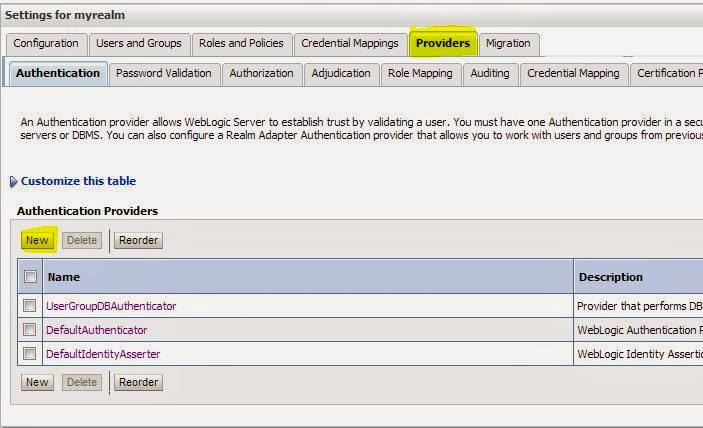
          Go to Security Realms.
          Select myrealm > Providers.
       
  Click on New.
 Provide a name for the new provider (e.g. MySQLlProvider).


Set SQLAuthenticator as provider type.
Click on OK and the new provider should appear on the list of available providers.
Click on the new provider.
Change control flag to SUFFICIENT


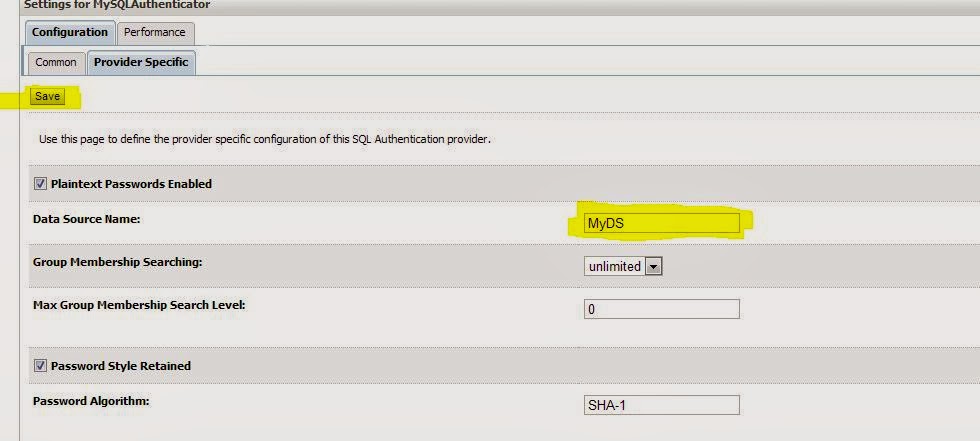
Go to Provider Specific
Specify the Data Source Name. Use the information of the data source previously created.
Select the Password Style as Plaintext
Leave the rest as default.
Click on Save


Set the control flag to SUFFICIENT for all the authenticators (DefaultAuthenticator) in the list.

 Reorder the Authentication Providers


As non-dynamic changes were done, WebLogic Server needs to be restarted.

Testing the SQLAuthenticator

  1. Log into the Administration Console.
  2. Validate that users from the database were retrieved. Go to Security Realms -> myrealm -> Users and Groups and review if users of the provider sqlProvider were loaded.

In next blog, i will demonstarte how to integrate Human Task and Worklist app with SQL authenticator.